
TL;DR
When portrait colors shift after upload, compare the original and uploaded image on the same screen before changing saturation. A properly converted, tagged sRGB copy in standard dynamic range is a practical starting point for web profiles; generator changes require a separate likeness check.
A portrait can look warm and natural in an editor, then pale on a professional profile, without the face itself changing. When AI portrait colors change after uploading, the cause may be color interpretation, HDR handling, platform processing, or the display rather than AI generation. For LinkedIn headshots, business imagery, and dating profiles, the useful question is where the difference first appears.
Color management: The process of interpreting image color values through color profiles and translating them for a display or output.
The following checks separate viewing differences from changes baked into the picture, then establish a repeatable web-export workflow.
Table of Contents
Why do AI portrait colors change after uploading?
AI portrait colors change after uploading when the destination interprets color information differently, processes the image, or displays it under different conditions. A missing color profile, wide-gamut conversion, HDR-to-SDR rendering, or screen setting can alter appearance. AI generation is a separate cause when the downloaded portrait already differs from its reference photos.
Color profiles, HDR, and screens affect different things
ICC profile: Metadata that describes how an image's numerical color values should be interpreted.
sRGB: A standard RGB color space commonly used for web images.
Display P3: A wider-gamut color space that can represent some colors outside sRGB.
HDR: High dynamic range, which allows a broader brightness range than standard dynamic range, or SDR.
A profile mismatch can change skin tones and saturation even when pixel values remain untouched. Converting Display P3 to sRGB can also reduce colors that fall outside the destination gamut. That's different from losing brightness information during HDR-to-SDR rendering.
Screens introduce another variable. Automatic brightness, night modes, and adaptive color settings can make identical files look warmer, cooler, or less vivid.
A visual difference doesn't prove that the uploaded file's pixels changed. Interpretation and display conditions can change the result.
Generator changes exist before the upload
AI-generated lighting, makeup, or skin tone can already be present in the downloaded portrait. If the saved original contains the same difference, changing export settings won't restore the reference appearance.
The 2022 survey Countering Malicious DeepFakes: Survey, Battleground, and Horizon covers synthetic-media detection, not web color-export troubleshooting. That distinction matters: a generation artifact and a color-management mismatch need different checks. Neither should be diagnosed solely from a pale thumbnail.
How can the source of a color shift be identified?
A color shift can be traced by comparing the original, export, and uploaded rendition under controlled viewing conditions.
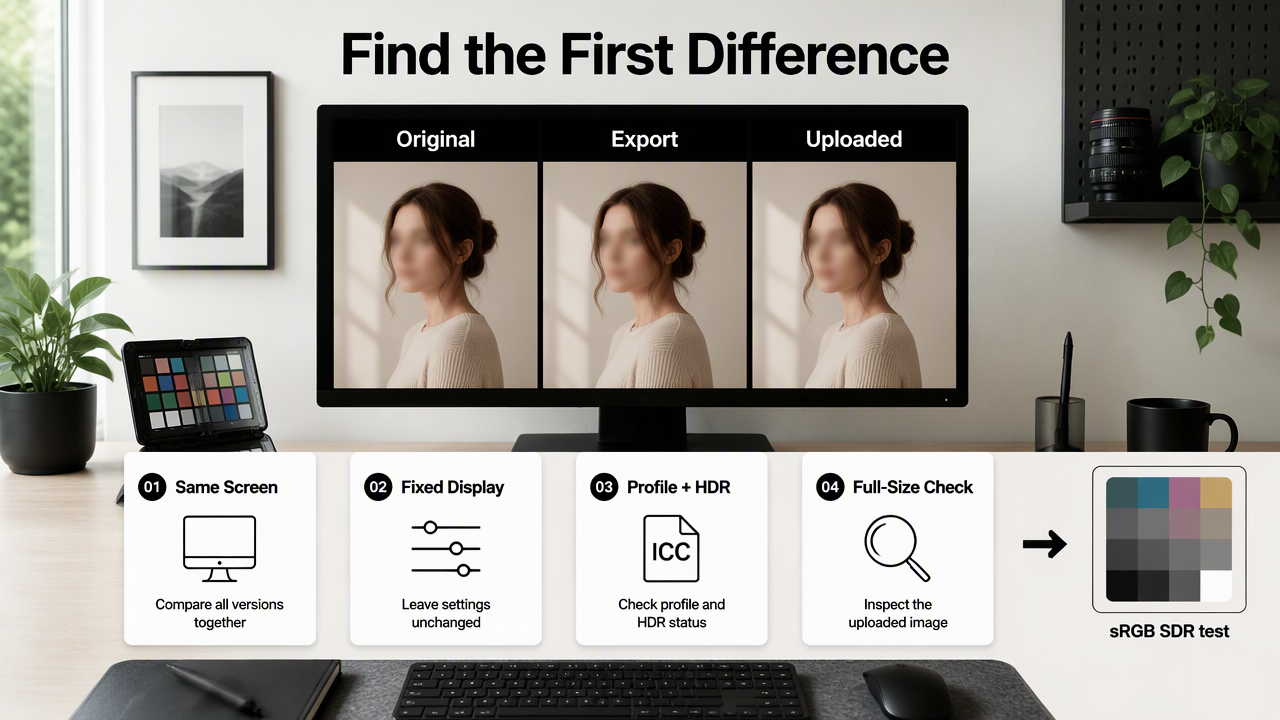
- Save the original downloaded portrait.
- Compare files on one screen.
- Keep display settings fixed.
- Check the embedded profile and HDR status.
- Inspect the uploaded full-size image.
- Repeat with an sRGB SDR export.
Diagnostic table: match the symptom to the next test
The location of the first visible difference is more useful than its severity.
| Observed difference | Possible explanation | Next test |
|---|---|---|
| Export differs from the editor | Export conversion or preview handling | Reopen the export in the same editor |
| Browser differs from the editor | Color interpretation or HDR rendering | Compare a tagged sRGB SDR copy |
| Uploaded rendition differs from the local file | Platform resizing, conversion, or processing | Download the rendition, if available, and reopen it |
| Only another device looks different | Display settings or capabilities | Compare identical files on the original device |
| Generated original differs from reference photos | Generated lighting or appearance | Review the original before export |
| Thumbnail differs from the full-size image | Separate preview processing | Inspect both versions before editing |
These are diagnostic clues, not guaranteed explanations. More than one factor can operate at once.
A controlled comparison prevents unnecessary edits
Place the local export and uploaded rendition side by side in the same browser on the same monitor. Keep room lighting and screen brightness steady. Temporarily disable night modes or adaptive color settings during the comparison.
If downloading the posted image is possible, open that copy beside the original in a color-managed editor. A screenshot is a weaker substitute because it captures the display pipeline rather than preserving the uploaded image's original color metadata.
How can an AI portrait be exported in web-ready sRGB?
A web-ready sRGB portrait should be converted into sRGB, exported with its profile embedded, and checked after saving.
- Duplicate the original file.
- Open it in a color-managed editor.
- Convert its profile to sRGB.
- Create an SDR version if needed.
- Export a tagged JPEG.
- Reopen and test the saved file.
Convert the profile rather than relabeling it
Convert to profile: Recalculates color values to preserve appearance as closely as the destination color space permits.
Assign profile: Changes the interpretation of existing values without recalculating them.
In Adobe Photoshop, the relevant conversion command is Edit > Convert to Profile; select sRGB IEC61966-2.1 as the destination. Interface details can vary by version. Assigning sRGB to a correctly tagged Display P3 image isn't equivalent to converting it and can change its appearance.
For an untagged image, identify the intended source space before conversion. Guessing a profile can introduce another mismatch.
Create a standard-dynamic-range delivery copy
For an HDR original, use an editor's HDR-to-SDR or tone-mapping controls to create a standard-dynamic-range version. Inspect cheeks, forehead highlights, and white clothing during conversion. Merely selecting sRGB doesn't necessarily remove HDR information or produce the intended SDR brightness.
In 2026, HDR support still depends on the combination of file format, application, platform, and display. A dedicated SDR copy provides a useful comparison baseline without requiring every viewer to share the same capabilities.
Save a reusable export preset
A consistent preset reduces variables across LinkedIn, portfolio, and social-profile uploads.
- Format: JPEG for a broadly compatible photographic delivery copy.
- Color: Convert to sRGB and embed the ICC profile.
- Brightness range: Use the reviewed SDR version.
- Dimensions: Follow the destination's current requirements.
- Quality: Inspect facial edges and gradients after compression.
- Archive: Preserve the original separately.
Reopen the saved JPEG before uploading. If that file already looks wrong, investigate the export rather than compensating with extra saturation. A stronger edit can look unnatural on displays that render the original correctly.
How Looktara handles this
A portrait workflow with Looktara can use a clear handoff between portrait creation and web delivery: select the intended appearance, retain the downloaded original, and prepare a separately checked profile-image copy. The useful goal is consistent presentation across professional contexts, with a saved reference for future updates.
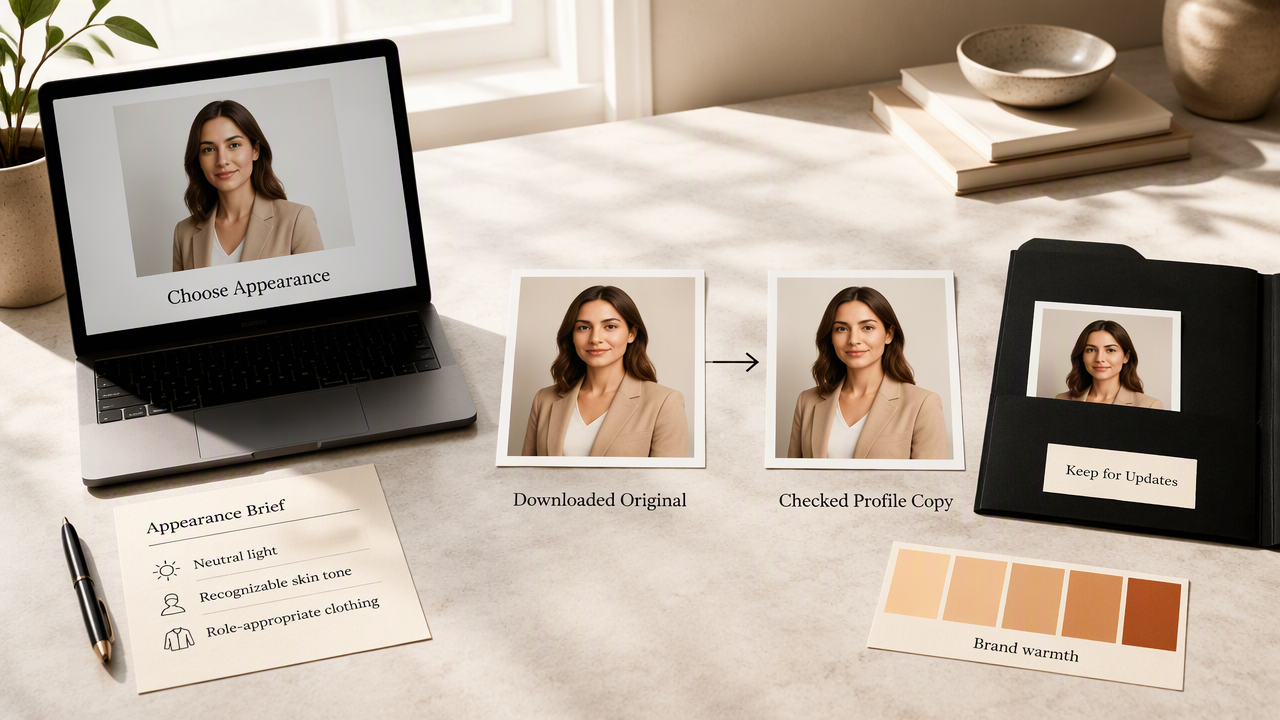
Use an appearance brief before preparing delivery files
An appearance brief gives portrait selection a concrete standard. For a job seeker, that might mean neutral lighting, recognizable skin tone, and clothing suited to the intended role. A creator might prefer a warmer palette that matches existing brand imagery.
The 2023 paper Beyond the Artifact: Power as a Lens for Creativity Support Tools addresses creativity-support tools rather than ICC conversion. It provides broader context for tool-assisted creative work, not evidence for any particular export setting.
A simple portrait handoff checklist
- Keep the selected original as the appearance reference.
- Save a clearly named web copy, such as
headshot-srgb-sdr.jpg. - Review the destination's full-size presentation.
- Record the successful export settings for later updates.
A repeatable handoff keeps portrait selection and technical delivery separate, making future profile refreshes easier to manage.
Frequently asked questions about portrait upload colors
Portrait upload questions are easiest to resolve by separating file format, color interpretation, and viewing conditions.
Does JPEG automatically make a portrait sRGB?
JPEG doesn't automatically mean sRGB. A JPEG can contain color information associated with another RGB space, and its embedded profile matters. A reliable delivery workflow explicitly converts the image to sRGB and embeds that profile. Renaming a file or choosing JPEG alone doesn't perform the same operation.
Will PNG prevent washed-out skin tones?
PNG can avoid lossy JPEG compression, but it doesn't automatically fix color-profile or HDR interpretation. Both formats can look different when applications interpret their color information differently. PNG is useful when lossless storage or transparency is needed; a properly prepared JPEG remains a practical option for photographic profile images.
Should saturation be increased before uploading?
Saturation should be adjusted only after the export and viewing pipeline has been checked. A profile mismatch can make a correctly edited portrait appear dull, so compensating immediately may oversaturate the actual file. Once a tagged sRGB SDR copy renders consistently, modest aesthetic adjustments can be judged against the intended appearance.
Can every screen show exactly the same portrait colors?
Every screen won't necessarily show identical portrait colors. Display gamut, calibration, brightness, ambient lighting, and viewing software all affect appearance. A consistent export reduces avoidable variation, but it can't control another person's device. The realistic target is a natural-looking portrait across representative screens, not a perfect match everywhere.
Conclusion
Next steps for a consistent profile portrait
A dependable profile image starts with an approved original and a tested delivery copy. Preserve the source, convert a duplicate to tagged sRGB SDR, and compare the uploaded result under fixed viewing conditions.
For a fresh professional portrait, explore Looktara and apply the same delivery checklist to the selected image. Visit looktara.com to begin portrait planning, then save the successful export preset for the next profile update.
Generated by EarlySEO.com